

If you’ve ever looked at an Excel sheet and thought, “This looks messy”, formatting is usually the problem—not the data. Simple things like aligning text or merging cells can make a huge difference, especially when you’re working on reports, headers, tables, or dashboards. One of the most commonly used tools for this is Merge & Centre. Let me show you how it works, when to use it, and when it’s better to avoid it.
What Does Merge & Centre Mean in Excel?
Merge & Centre does exactly what the name suggests, but it helps to break it down.
Merging cells
When you merge cells, you’re combining two or more neighbouring cells into one larger cell. For example, merging A1, B1, and C1 turns them into a single wide cell.
Centring text
Once the cells are merged, Excel automatically places the text in the centre of that new cell. This makes headings stand out and keeps things visually balanced.
When is it usually used?
Most people use Merge & Centre for:
- Titles at the top of reports
- Headings above tables
- Section labels
- Dashboard headings
It’s mainly a presentation tool, not a data-management one.
How to Merge & Centre Cells in Excel
There are a couple of easy ways to do this. The first one is what most users start with.
Method 1 – Using the Merge & Centre Button
- Select the cells you want to merge
- Go to the Home tab
- Click Merge & Centre
That’s it. The cells merge, and the text moves neatly into the centre.
Method 2 – Using the Merge Options Dropdown
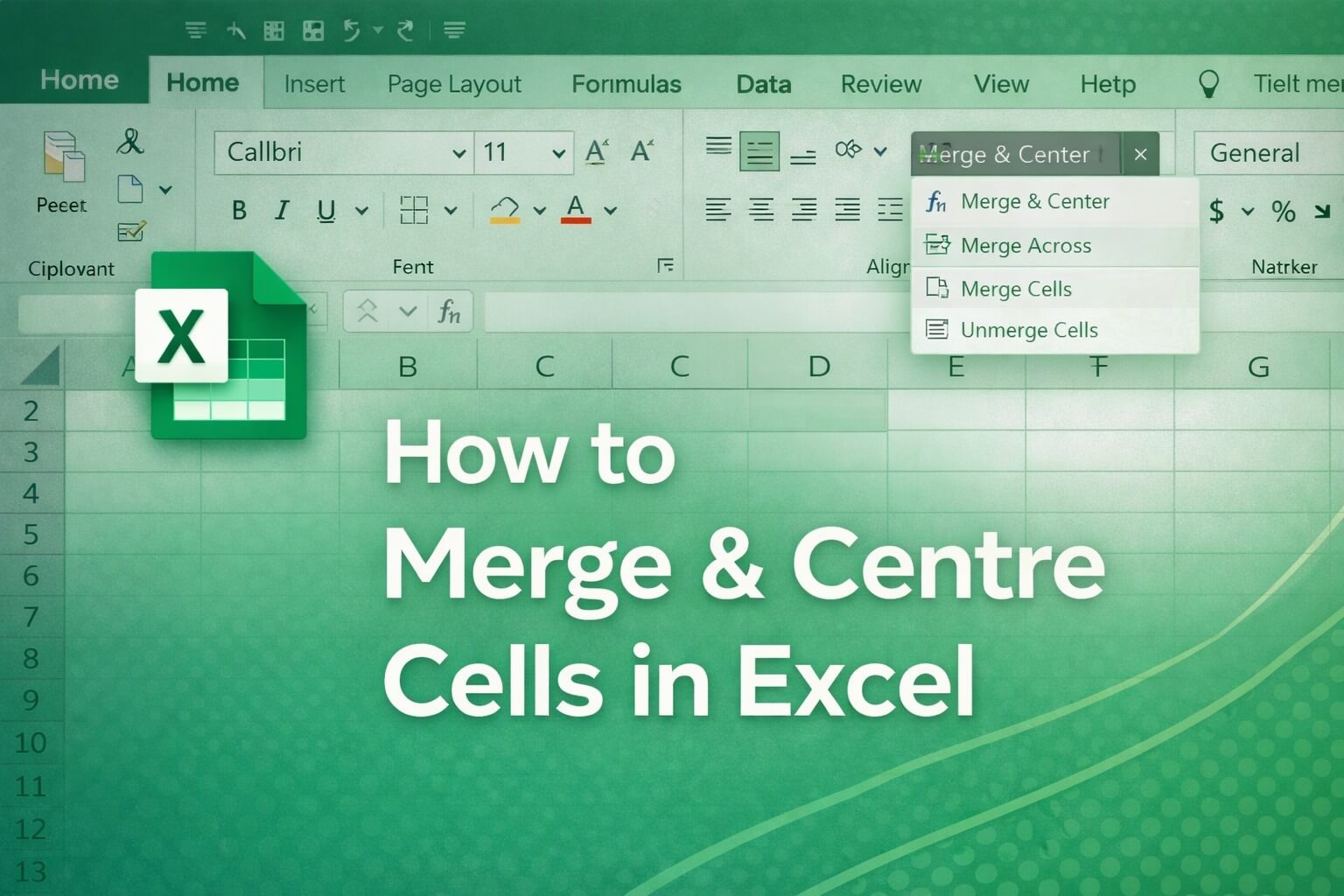
Next to the Merge & Centre button, you’ll notice a small arrow. Clicking this opens more options:
- Merge & Centre
- Merge Across
- Merge Cells
- Unmerge Cells
Each option is useful in different situations.
Understanding the Different Merge Options
Merge & Centre
This is the most popular option. It merges the selected cells and centres the text automatically. Best for titles and headers.
Merge Cells
This merges cells but doesn’t change the text alignment. If you want the text left-aligned or right-aligned, this option gives you more control.
Merge Across
This merges cells row by row instead of merging everything into one big cell. It’s handy when working with structured layouts.
Unmerge Cells
This splits a merged cell back into individual cells. Just remember—only the top-left cell keeps the data.
How to Merge Cells Without Centring Text
There are times when centring text doesn’t look right, especially in tables.
To merge without centring:
- Select the cells
- Click the Merge & Centre dropdown
- Choose Merge Cells
This keeps your layout clean while letting you control text alignment manually.
How to Unmerge Cells in Excel
Unmerging is just as simple as merging.
- Select the merged cell
- Go to Home → Merge & Centre dropdown
- Click Unmerge Cells
What happens to the data?
Only the content in the top-left cell stays. Everything else is cleared, so it’s always smart to double-check before unmerging.
When Should You Use Merge & Centre?
Merge & Centre works best when it’s used in the right places.
Good examples include:
- Report titles
- Section headers
- Dashboard headings
- Excel sheets meant for printing
These areas benefit from better spacing and visual clarity.
Common Mistakes to Avoid
This is where many people run into trouble.
Losing data while merging
When cells are merged, Excel keeps only the top-left value. Any other data is removed without warning.
Using merged cells inside data tables
Merged cells can interfere with:
- Sorting
- Filtering
- Pivot tables
If your data needs to be analysed, avoid merging.
Overusing merged cells
Too many merged cells make a sheet harder to edit and maintain later.
Formula problems
Merged cells can cause reference issues in formulas, especially in larger sheets.
A Few Simple Formatting Tips
If you want your Excel sheets to look good and work smoothly:
- Use Centre Across Selection instead of merging when possible
- Avoid merging cells in datasets used for calculations
- Reserve merged cells mainly for headings and titles
These small habits save a lot of frustration later.
Conclusion
Merge & Centre is a great tool when your goal is better presentation and readability. It helps headings stand out and makes reports look more polished. That said, it’s best used carefully and mostly outside of working data tables. Always check your data before merging, and remember—good formatting should make your work easier, not harder.
FAQs
What happens to data when I merge cells?
Only the top-left value remains. All other data is deleted.
Can I merge cells without centering text?
Yes. Use the Merge Cells option instead of Merge & Centre .
Why is Merge & Centre sometimes disabled?
This can happen if the sheet is protected, you’re editing a cell, or you’re working inside a table.
Does Merge & Centre affect formulas?
Yes. Merged cells can cause formula and reference issues.
How do I unmerge cells without losing data?
Excel doesn’t restore deleted values, so always copy data before unmerging.
Is Merge & Centre good for data tables?
No. It’s best avoided in tables used for sorting, filtering, or analysis.